
I can't sign in, or I've forgotten my password
Piper's Metronome 1 · iPhone, iPad and Android · Updated 23 November 2026
Send yourself a password reset link from the app's sign-in screens: enter your email address, tap Trouble signing in?, then tap Send, and follow the link in the email we send you. The steps below take you there.
If you're here because your verification email didn't arrive, the same steps activate your account, and you can set the same password you chose originally.
The screenshots are from an iPhone. The exact screens you see may differ slightly depending on your device and on the version of Piper's Metronome, but the general process is the same. Where Android differs, the step says so.
Send yourself a reset link
-
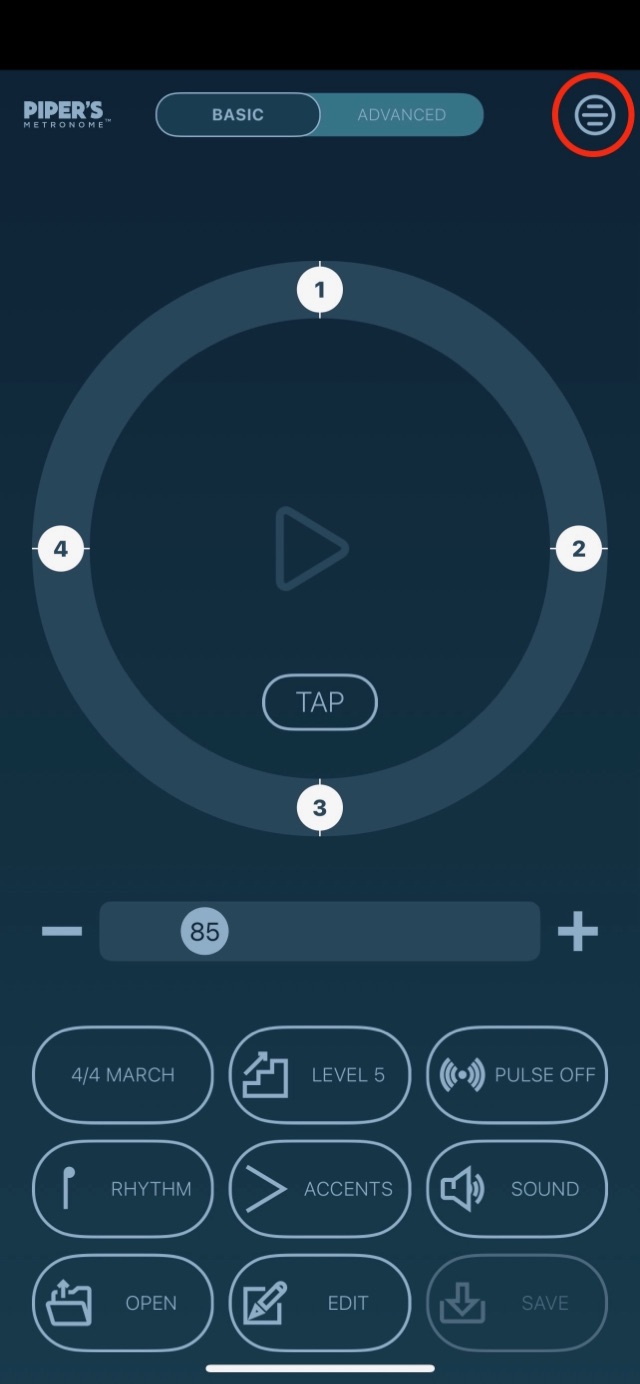
Open Piper's Metronome, then tap the Menu button in the top corner.
-
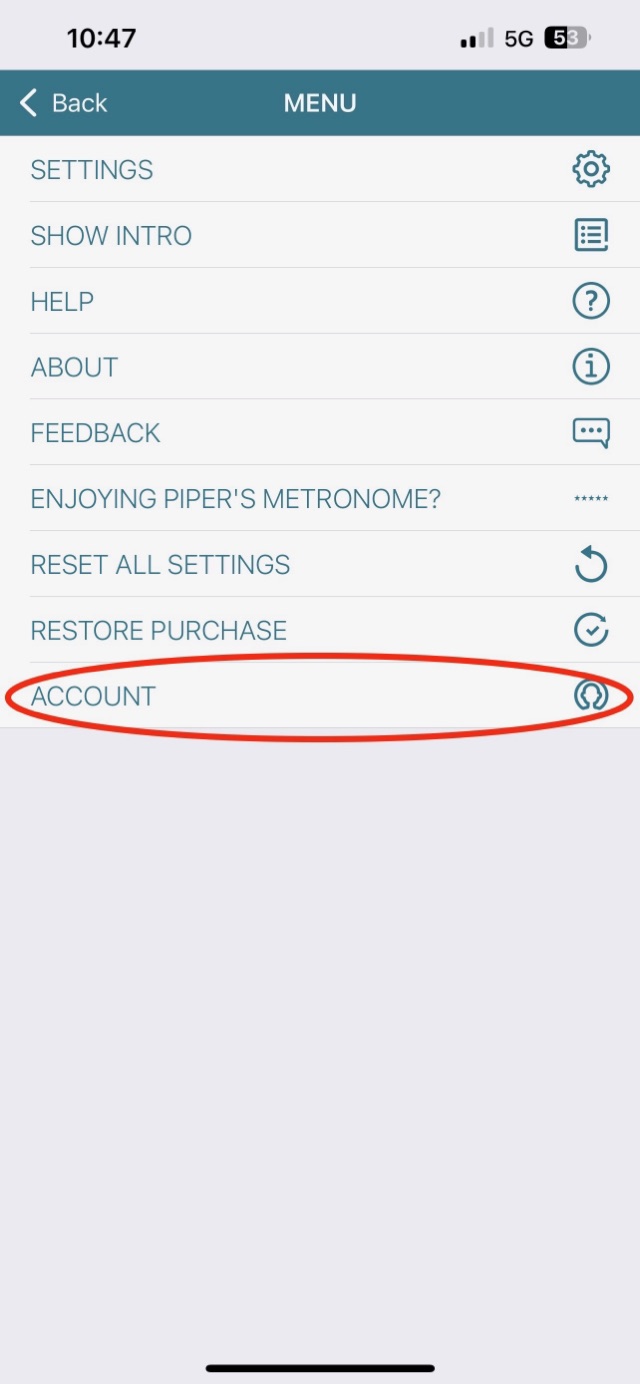
On the MENU screen, tap ACCOUNT, near the bottom of the list.
-
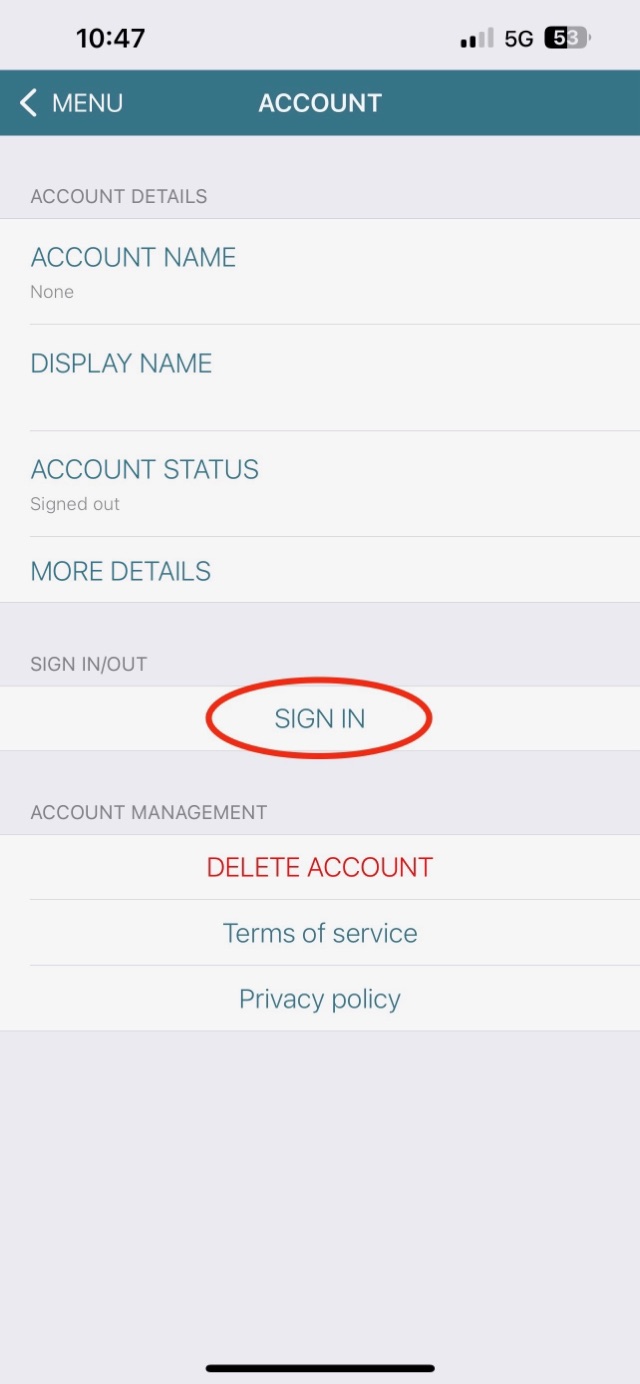
On the ACCOUNT screen, tap SIGN IN.
On Android, when you aren't signed in, ACCOUNT opens a screen with a Create Account / Log In button (or Log In): tap it.
-
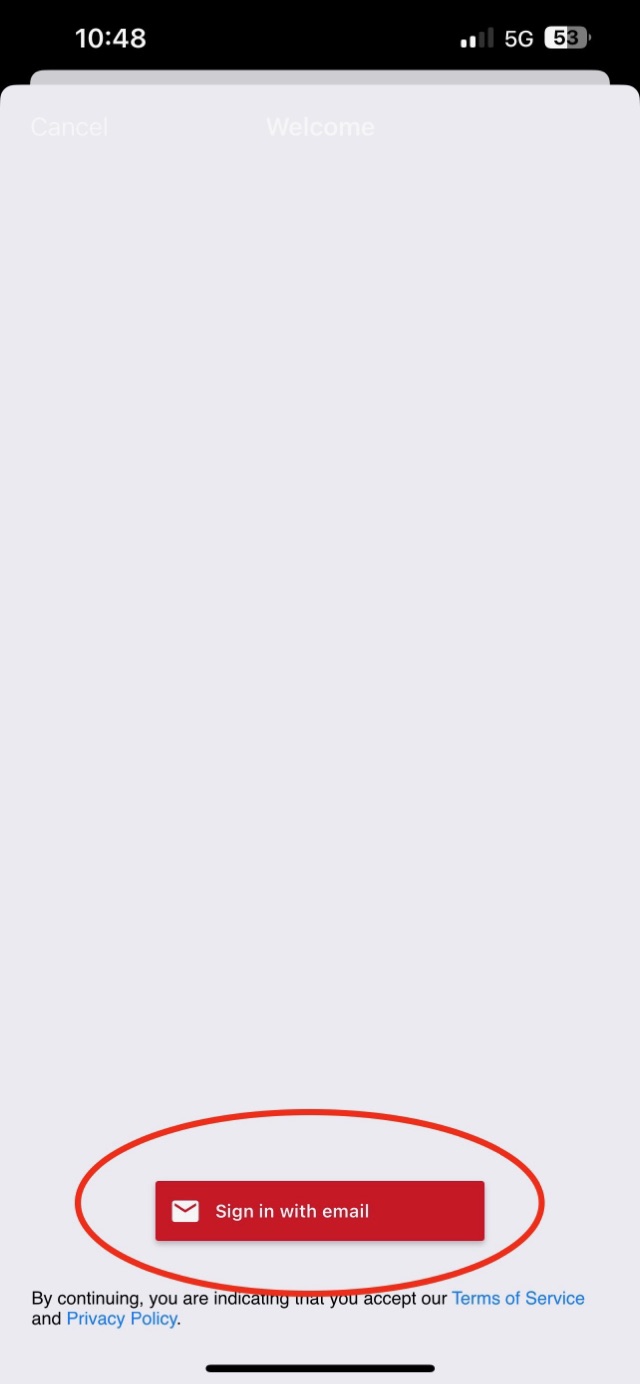
Tap Sign in with email.
On Android there is no such button: the app goes straight to the next step.
-
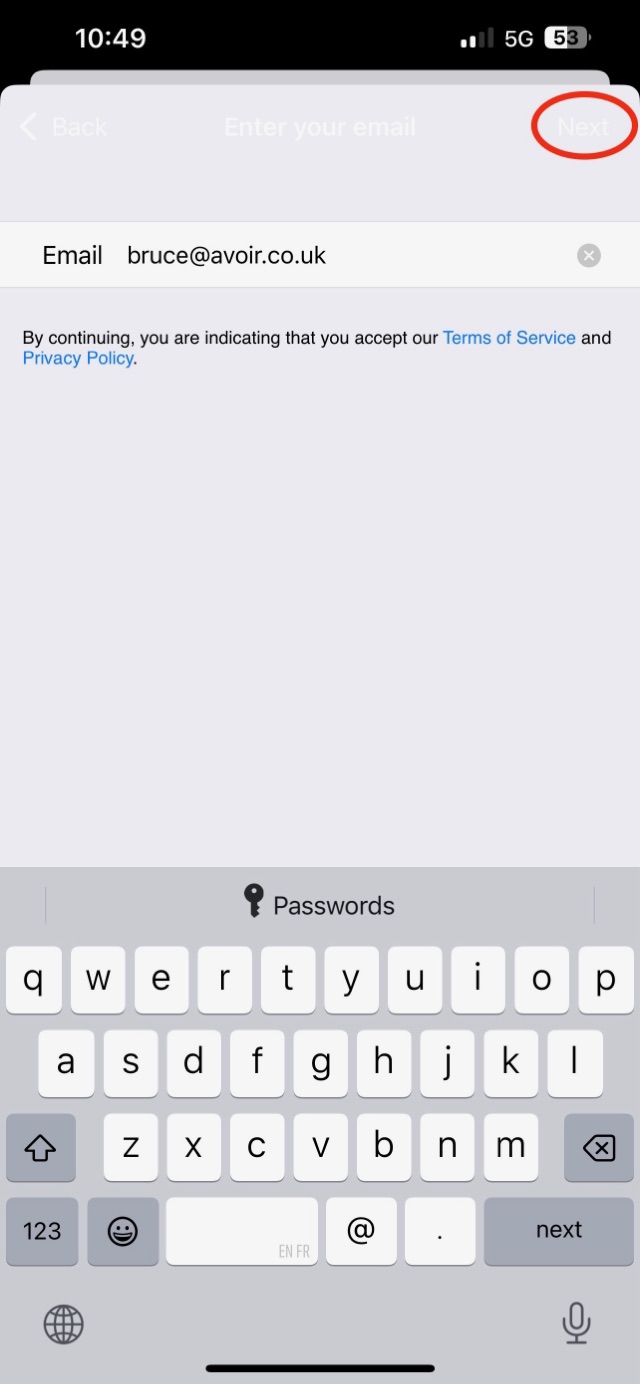
Type in your email address, then tap Next. On Android, tap Sign in.
Double-check your email address is typed in correctly. If it isn't right, tap it to edit it.
-
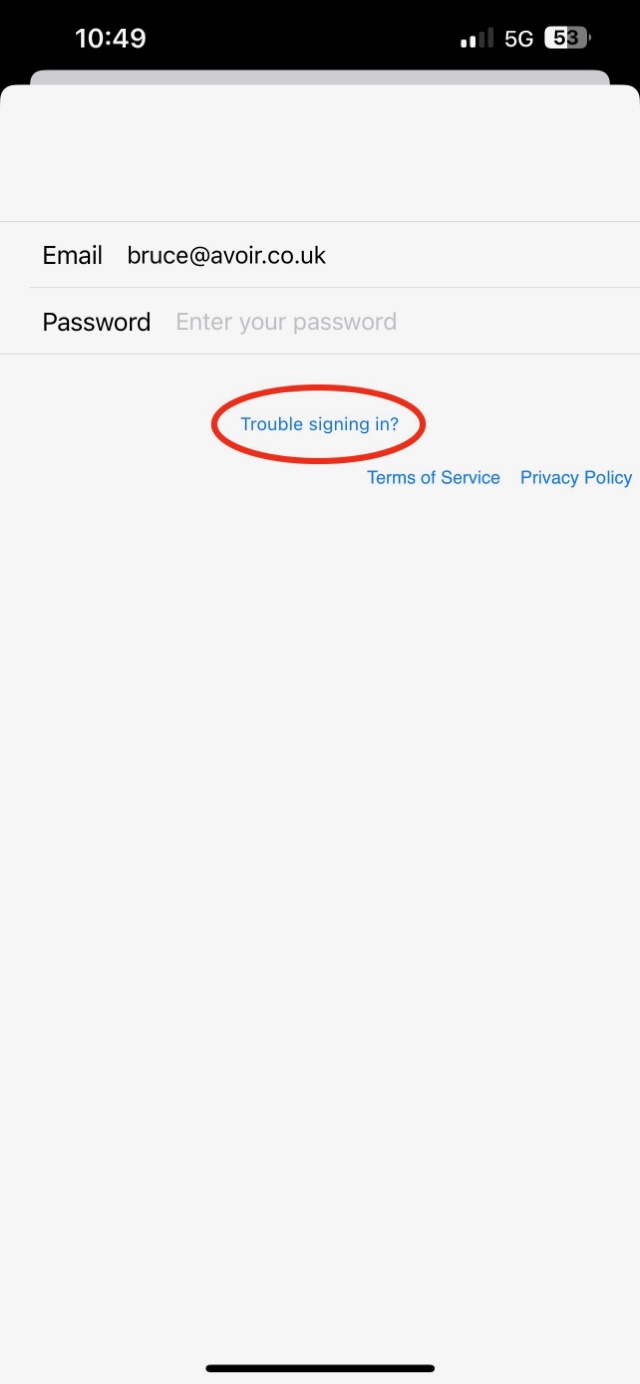
Tap Trouble signing in?
-
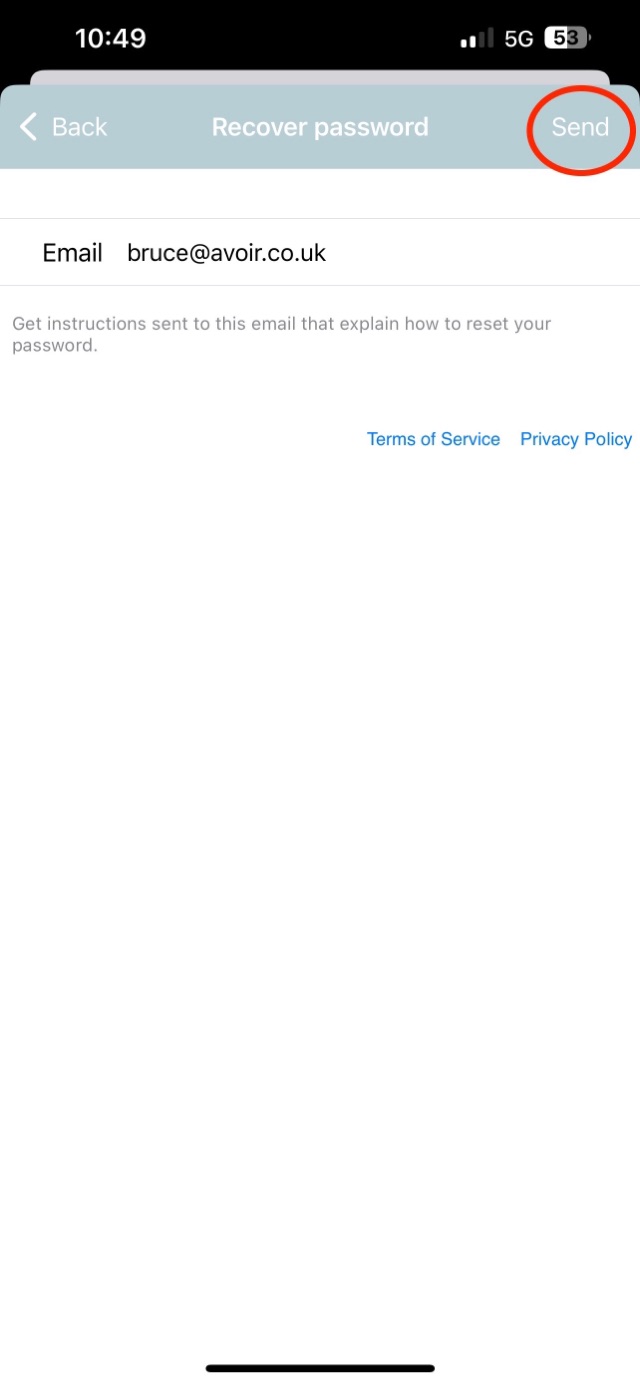
Double-check your email address is correct here: a common reason for not receiving the reset email is a typo in the address. Then tap Send.
Find the reset email in your inbox
The password reset email is normally sent within a few seconds, but may take several minutes. Check your inbox for an email with these details:
- From: Braw Sound, noreply@accounts.brawsound.com
- Subject: Reset your Piper's Account password
Open the email, then tap the reset link inside to open it in your web browser. Follow the instructions there to reset your password. If you're doing this because your verification email didn't arrive, the same link also activates your account.
Important:
- The link is only valid for 1 hour, and only the most recent link you send will work.
- If you can't find the email, check your spam folder, and add noreply@accounts.brawsound.com to your safe senders list.
Sign in with your new password
Follow steps 1 to 5 again to get back to the sign-in screen, and this time sign in with your email address and new password. Be sure to double-check that your email address and password are typed in correctly.
Still stuck? Get in touch and we'll help you out.
Still stuck? Contact us and we’ll help you out.